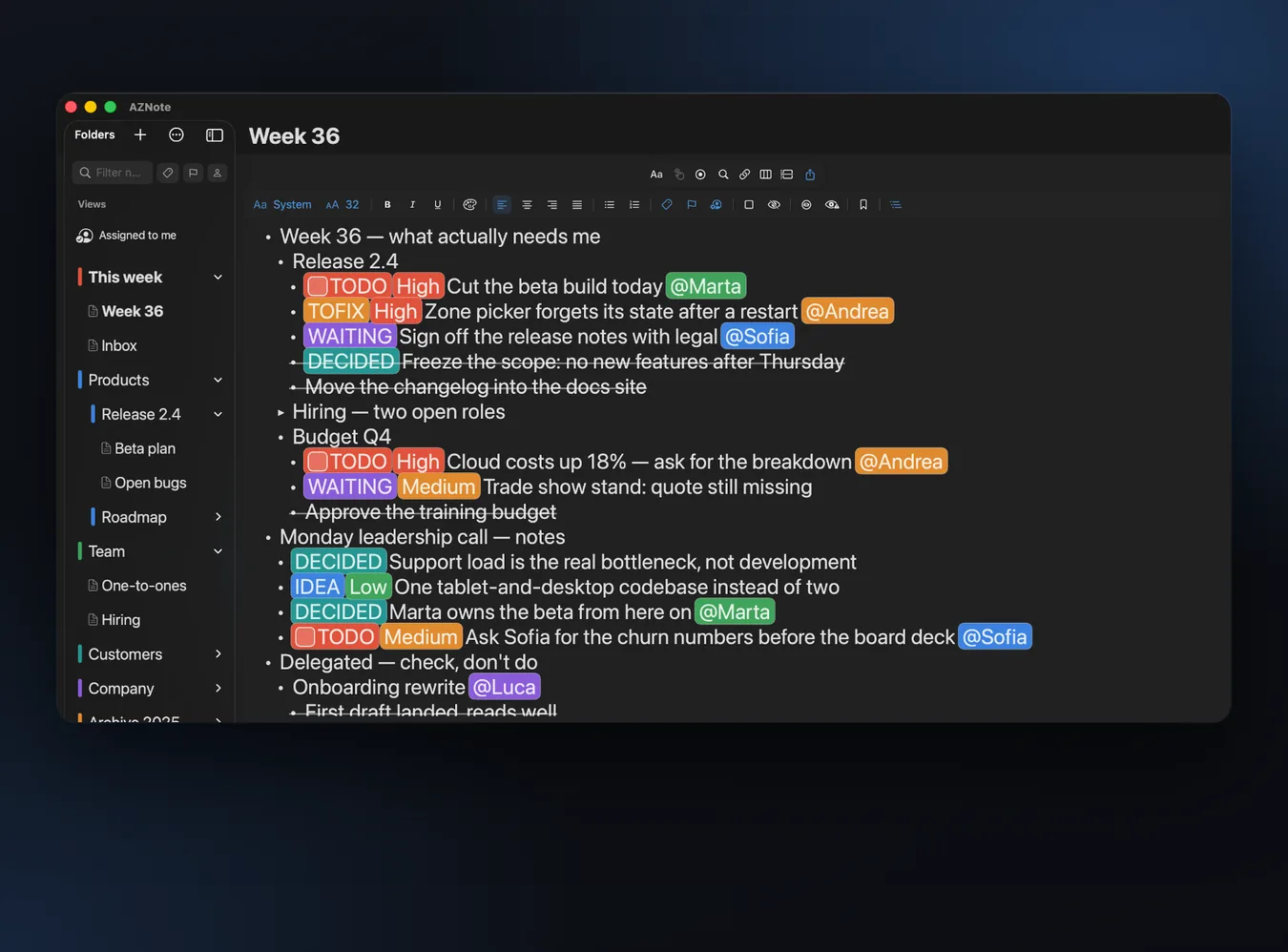
Getting started
The column on the left holds your folders and, inside them, your notes. Folders can hold other folders.
- + at the top of the column makes a folder or a note. Right-click a note for New Note Below, which adds one right under it, in the same folder.
- A note that works well can become a template: share menu ⇧ → Keep as template…. Templates are then offered from the folder's menu.
- When you come back, AZNote reopens on the same note, the same line, the same spot.
- Need to jot something without finding the right note? Quick Capture with ⇧⌘N: each line becomes an item of the Inbox note. It also works from the Share menu of Safari, Photos and other apps (Save to AZNote).
Writing in outline
Type - (dash and space) to start a bulleted list. From there:
- Return makes the next line at the same level; on an empty line it steps out a level.
- Tab and ⇧Tab move the line in and out, carrying its whole branch.
- Click the bullet of a line with children: the branch folds (▸) and opens back exactly as it was. Over bullets that can fold, the pointer turns into a hand.
- Click left of the bullet: the caret goes to the start of the line.
- Numbered lists (1. a. i. by level) from the toolbar or ⇧⌘L.
- Paste a list from Notes, Word, an email or a website: it becomes a real outline, hanging from the level of the line you paste into.
Focus and reorder
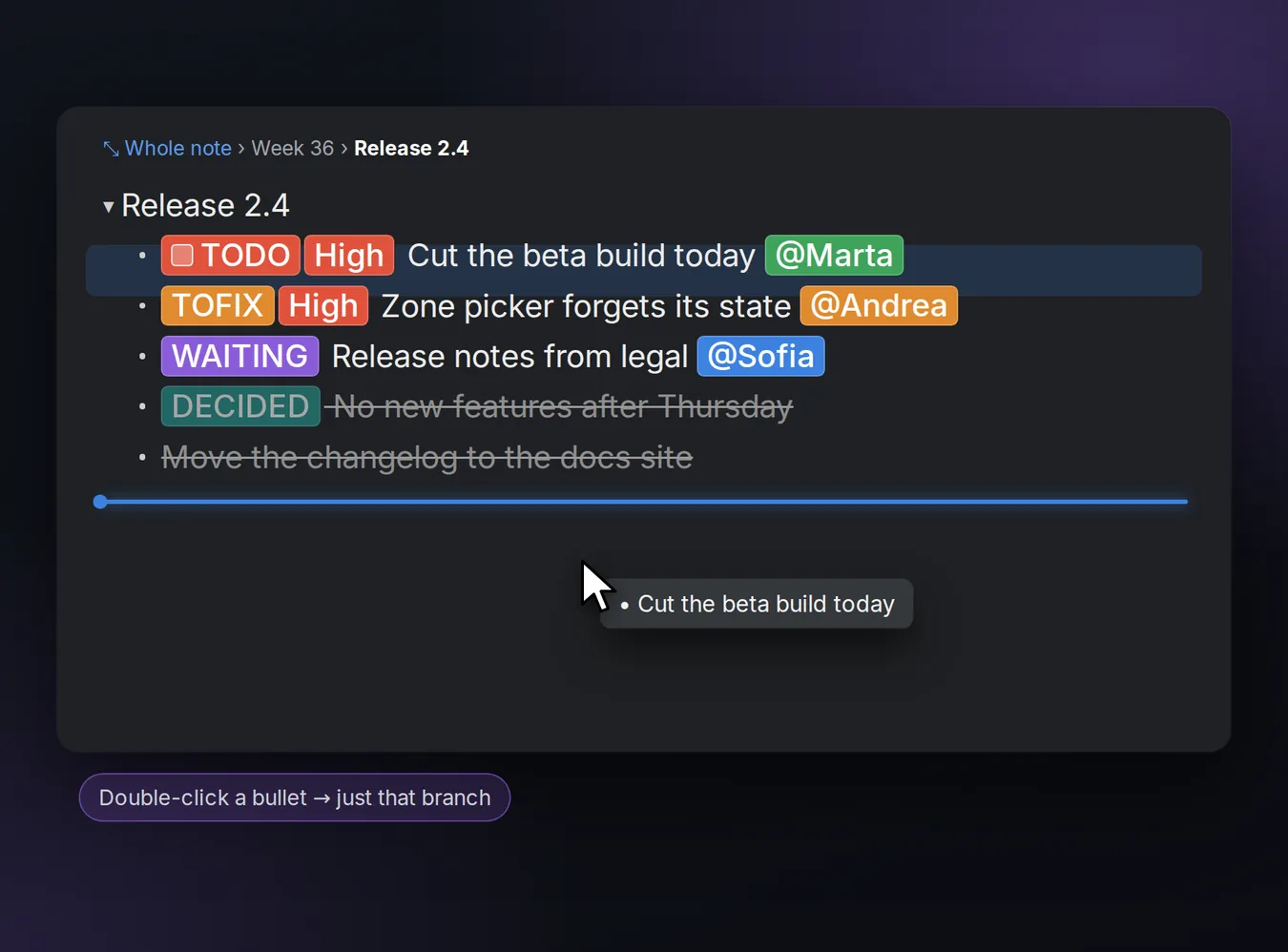
- Double-click the bullet of a branch: the note shows only that branch. A path appears at the top (Whole note › … › Branch) to climb back out.
- Press and hold a line and drag it: the line is highlighted, a copy follows the pointer and a blue line shows where it will land. Its branch moves with it. You can also drag from the bullet.
- ⌥↑ ⌥↓ move the line (with its branch) above or below its neighbour, keeping its level.
- ⇧-click a bullet to select the line with its whole branch: done, cut, copy and delete act on the block.
- Collapse all ⇧⌘C and Expand all ⇧⌘E.
Tags, people and priorities
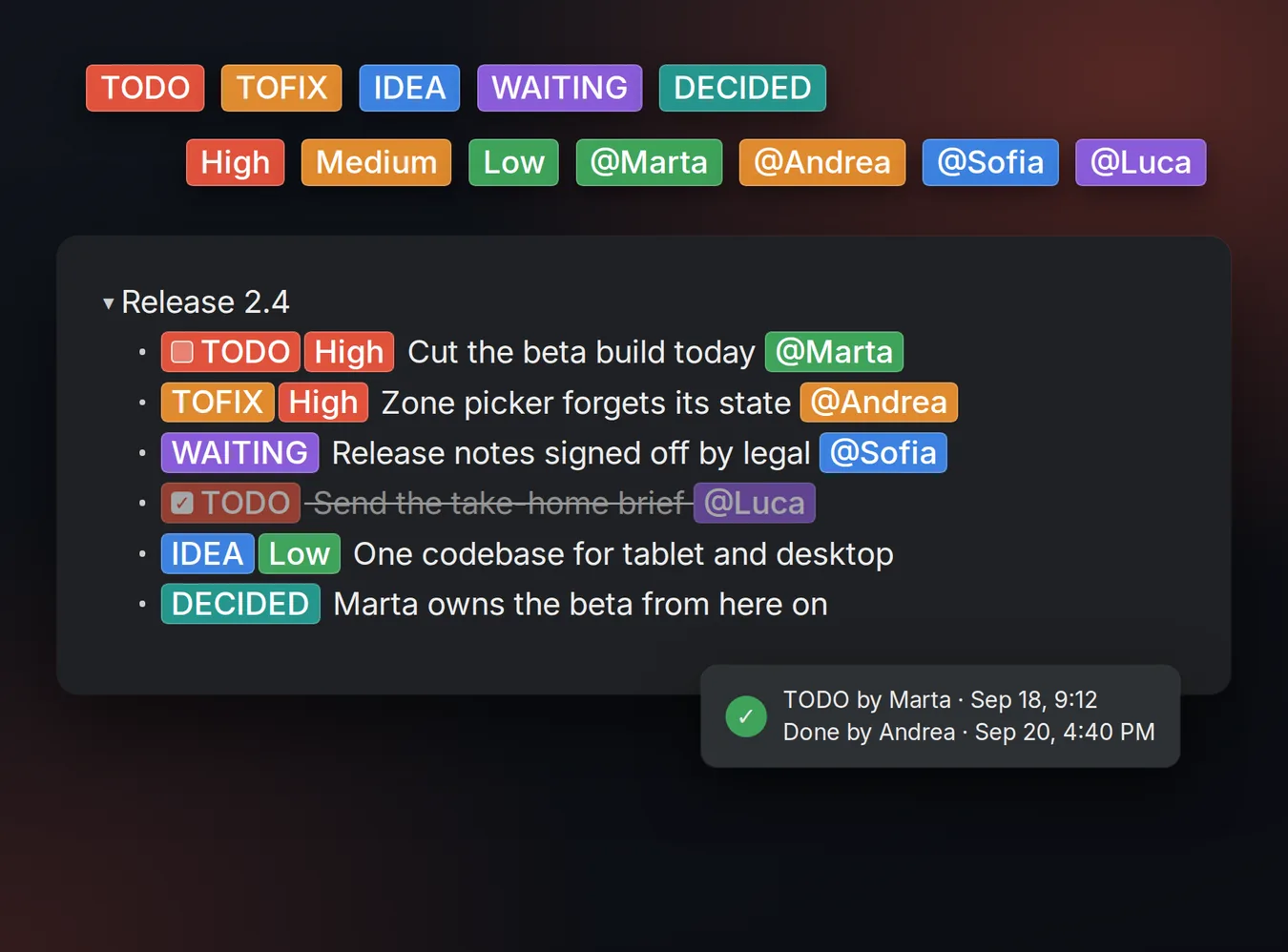
Coloured chips live inside the text: a tag (TODO, IDEA, TOFIX or your own), a person (@Marta), a priority (High, Medium, Low). Add them from the toolbar, with ⌘⌥1…9 for tags, or by typing @: the list of people pops up (arrows and Return to pick).
- A TODO carries its own checkbox: tick it right in the line. F5 or ⇧⌘D marks the line done.
- Hover a TODO to see who opened it and who closed it, and when. The footer shows who wrote and edited the line you are on.
- Right-click → History of This Line…: every change, by whom, with removed and added words highlighted.
- Hide done ⇧⌘H and invisible lines ⇧⌘I keep a note tidy without deleting anything.
Dates, reminders and mentions
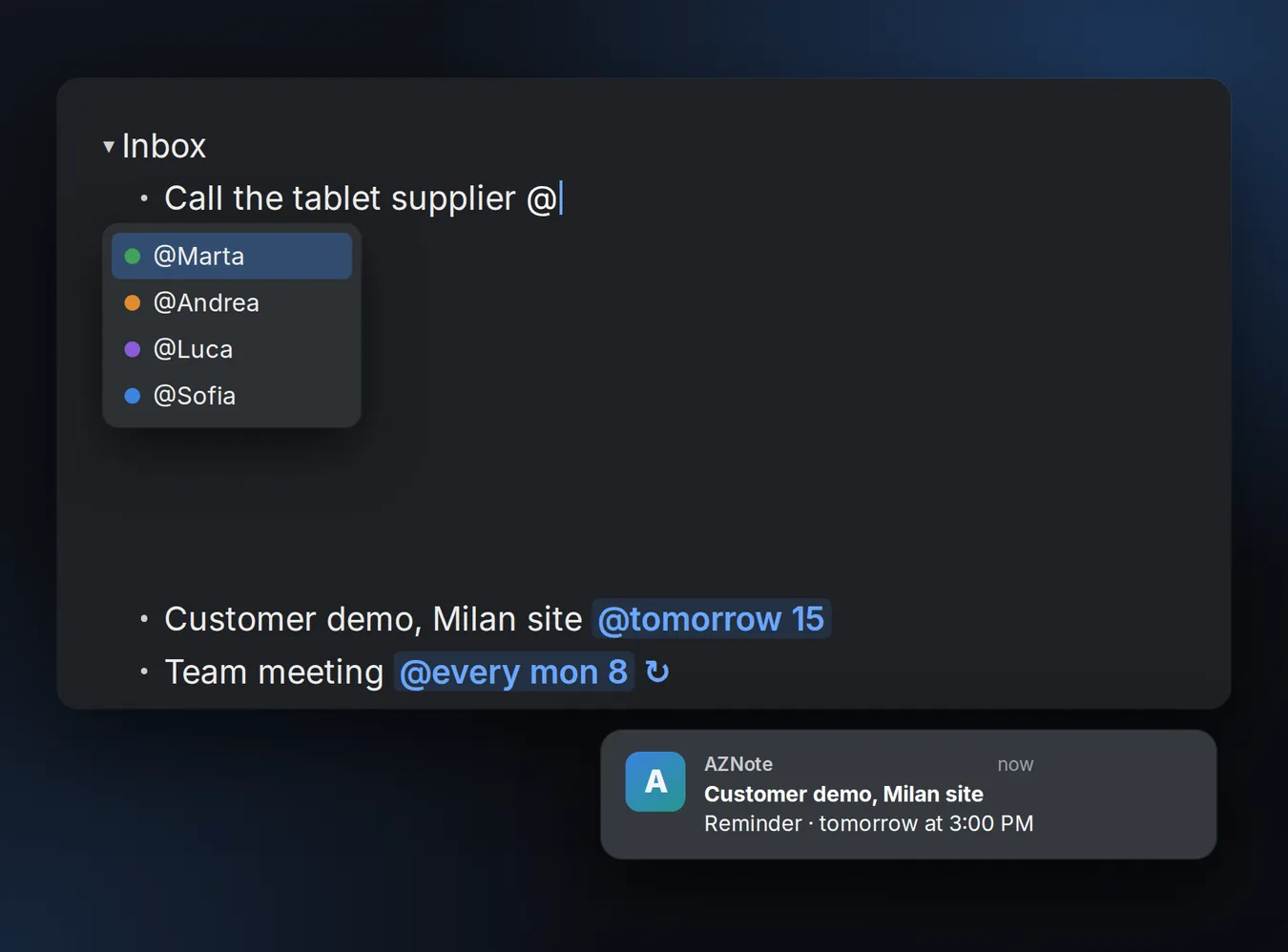
Write the date in the line and AZNote sets the reminder:
@today 17 | today at 5 PM |
@tomorrow 15:30 | tomorrow at 3:30 PM |
@fri 9 | Friday at 9 AM |
@20/10 | 20 October |
@every mon 8 | every Monday at 8 AM |
- A line can come back: right-click → Comes Back… (daily, weekdays, weekly, monthly). Ticked off, it reopens when its period turns.
- Reminders arrive as notifications; a click takes you to the line. From the line menu you can also send it to Apple Reminders.
- Links:
[[Note name]]opens the note (and makes it if it doesn't exist);[[text]]goes to the line that starts with it;[[Note › line]]to a line in another note. Hover to see where it leads.
Agenda
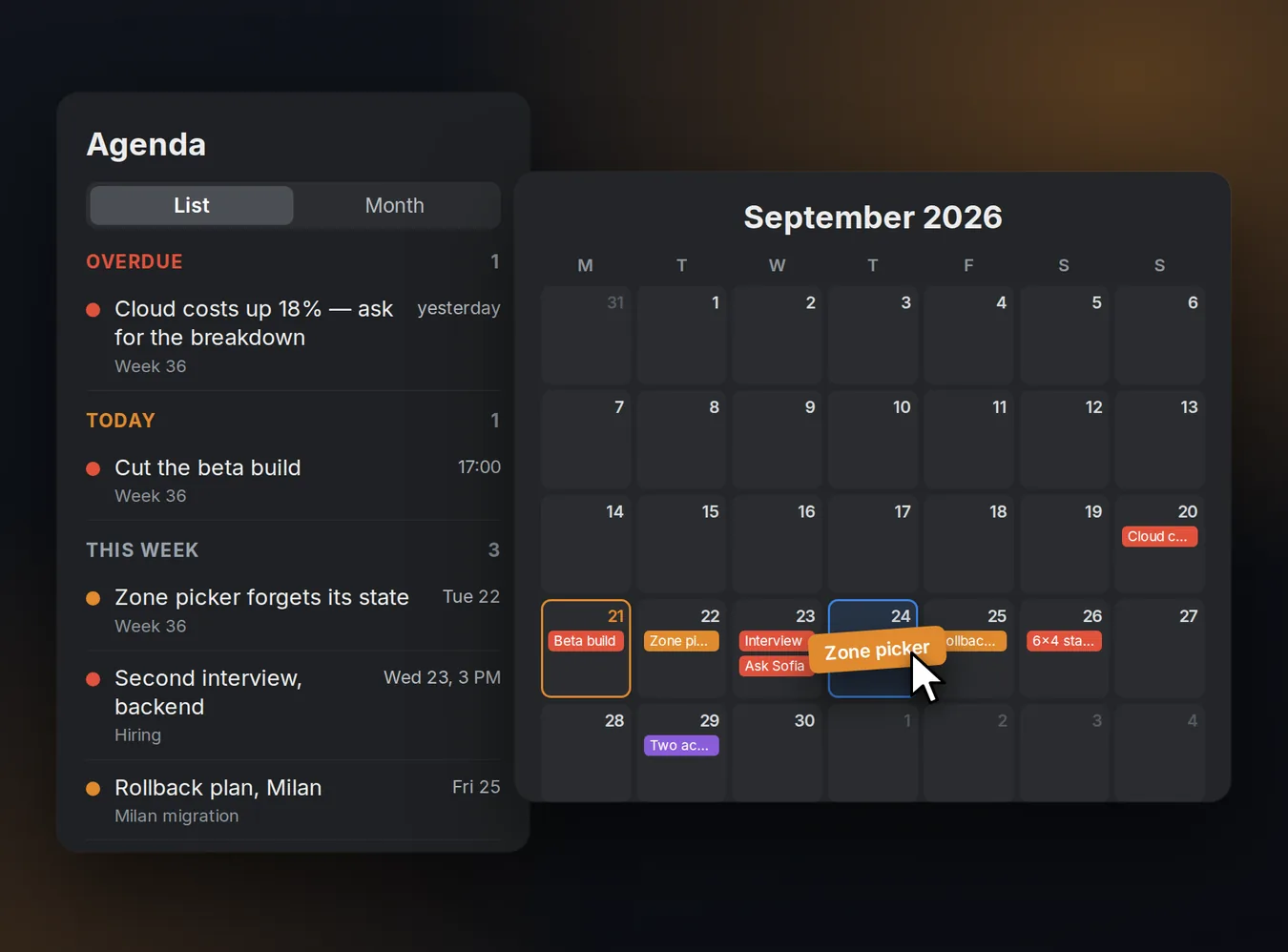
The Agenda (⌥⌘A) gathers lines from every note: Overdue, Today, This week, Later, No date. Filter by tag, person and priority.
- The Month view puts lines on their days. Drag a line onto another day: its reminder moves there, same time.
- Click a line to open the note right there; the panel stays open alongside.
Board
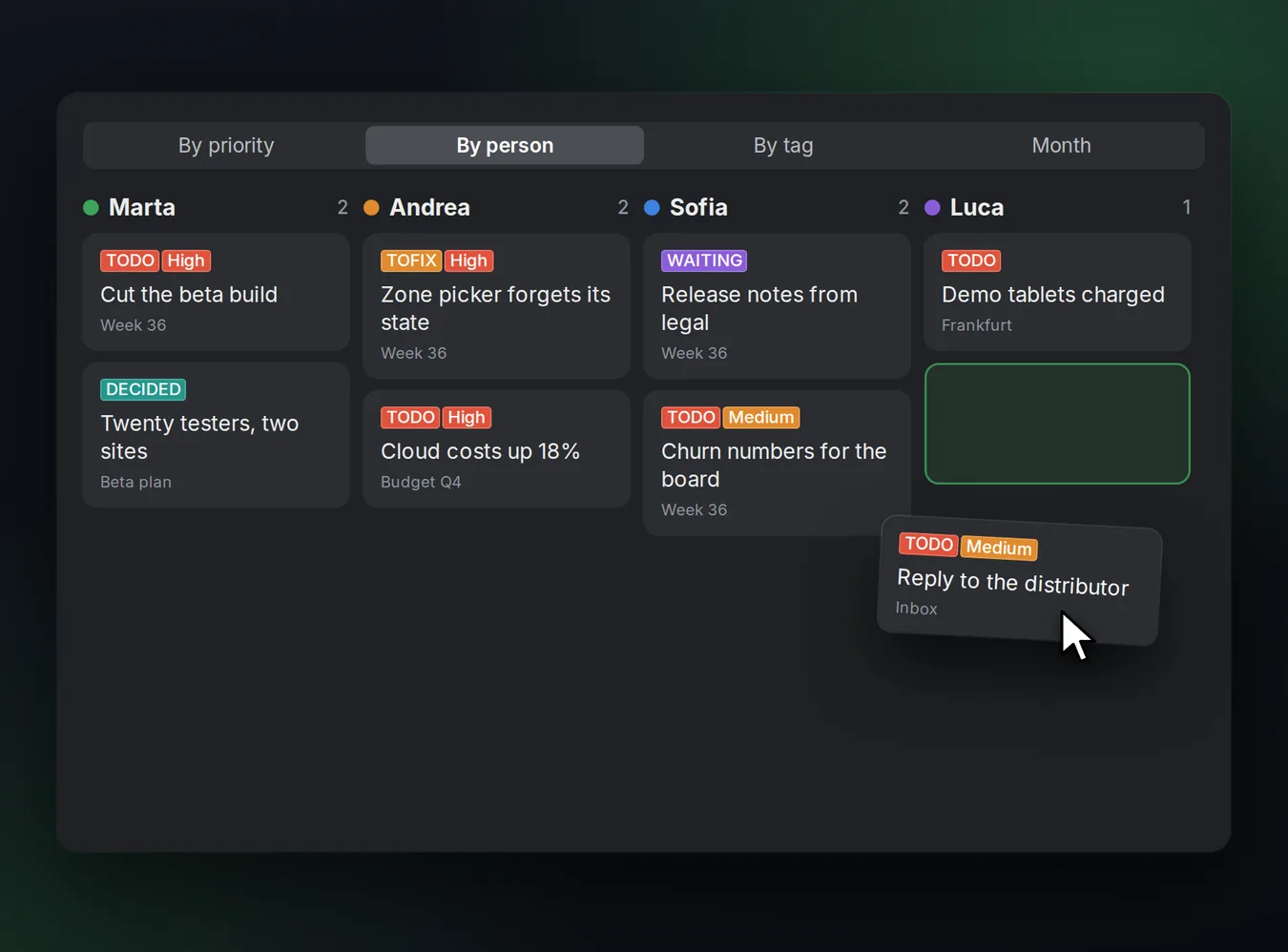
The Board (⌥⌘B) shows lines as cards, in columns by priority, by person or by tag, plus a month and a map of links.
- Drag a card to another column: the line takes that priority, person or tag — in the note and on the shared web page too.
Saved views and search
At the top of the column are your Views: saved questions over the whole library. Assigned to me is ready to use (it uses your name from Settings). To make more: + → New View…
tag:TODO | lines with that tag |
@Marta | assigned to Marta |
!High | with that priority |
in:Customers | in the notes of a folder (spaces as _) |
note:Week_36 | in that note |
due:overdue|today|week|none | by due date |
done:no | open lines only |
- Find in All Notes ⇧⌘F also finds text inside attached PDFs and images.
- Find and replace in a note: share menu ⇧ → Find and replace… (folded lines included).
- Commands ⌘K: every action in the app, from the keyboard.
Attachments
- Drag or paste an image, a PDF or any file onto a line: it hangs there and the line shows a clip 📎. Click it to open.
- Deleting the clip takes the files with it (⌘Z brings them back).
- Text in PDFs and images is read (OCR) and becomes searchable.
Sharing on the web
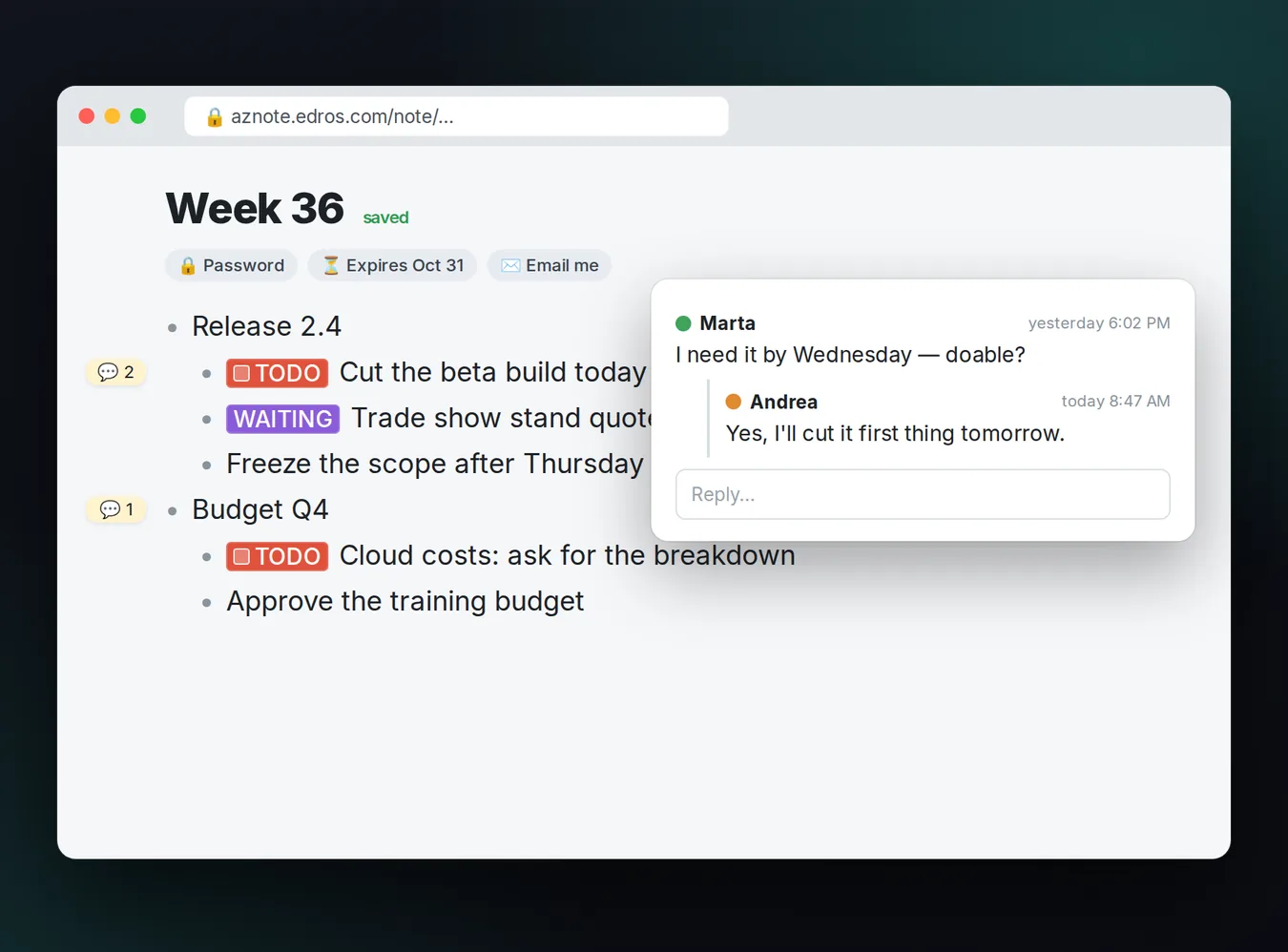
Share menu → Share on the Web…: AZNote makes a private link that opens in any browser, no account needed. Share the whole note or just one branch (right-click a line).
- For each link choose: edit or read-only, a name (to know who is writing), a password, an expiry, and whether to get an email when someone edits or comments.
- Whoever opens the link writes, moves lines, ticks TODOs, attaches files and leaves comments in the left column, with replies. You see who is typing and on which line.
- Edits reach the app within seconds; when two people write at once, AZNote merges the versions.
- If someone assigns you a line on the web (
@yourname), you get a notification right away. - End-to-end encryption keeps the content unreadable to the server: the key travels only in the link.
Mac, iPad and iCloud
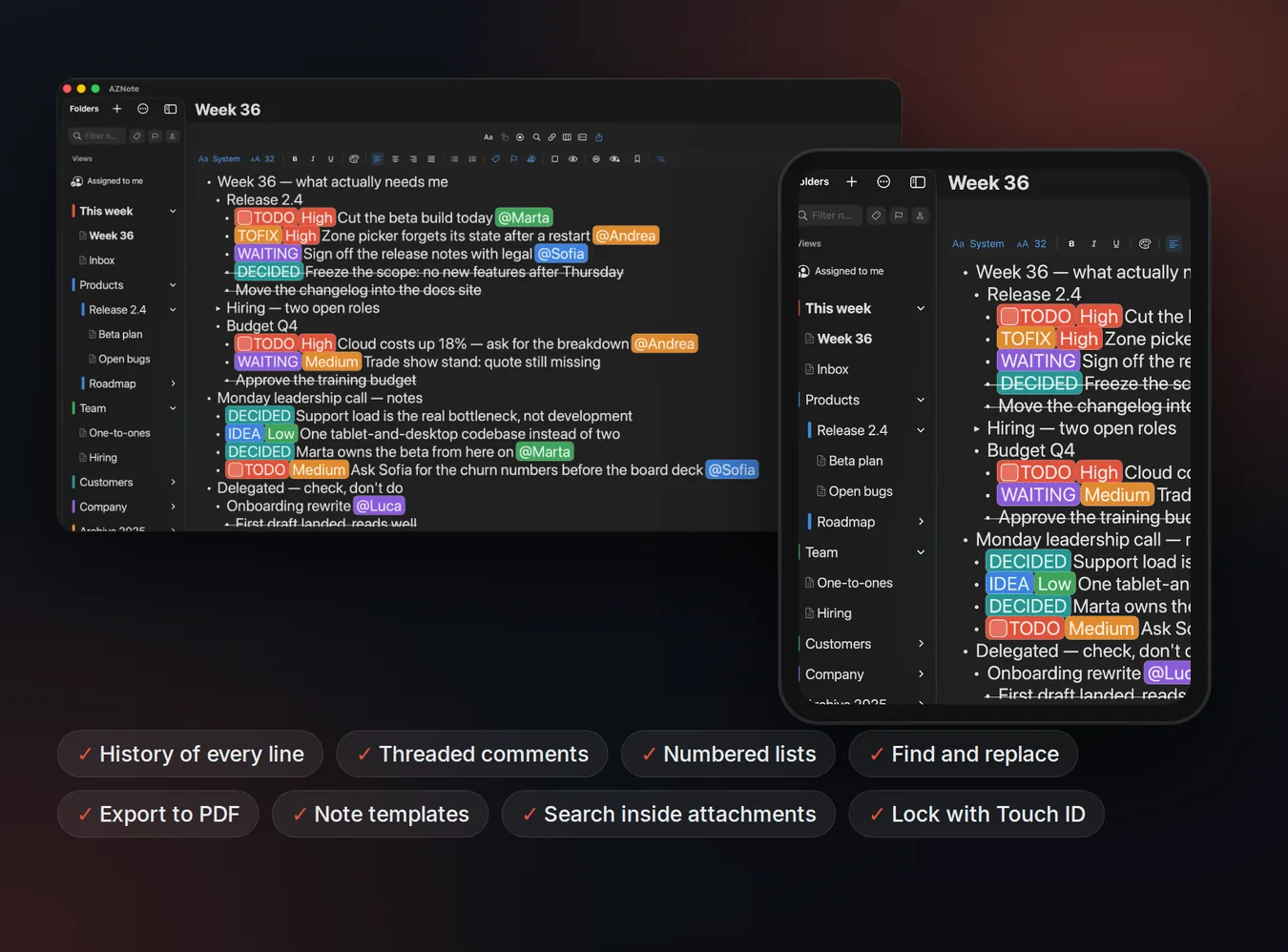
- Notes sync through your own iCloud: no account to create, your data stays yours.
- To work with others inside the app, share a folder through iCloud (right-click the folder → Share Folder…).
- Versions of this note: share menu ⇧ → Versions of this note…, to look back and restore.
- Automatic and manual backups from the ⋯ menu → Backups….
- Lock with Touch ID for private notes (right-click the note).
- Export to PDF (text and pictures) or Markdown; import Markdown, OPML and PDF to annotate by hand.
- On iPad, write and draw with Apple Pencil and record a meeting's audio, with bookmarks along the way.
Keyboard shortcuts
Writing
| New line | Return |
| Indent / outdent | Tab ⇧Tab |
| Move line up / down | ⌥↑ ⌥↓ |
| Mark done | F5 / ⇧⌘D |
| Invisible line | ⇧⌘I |
| Bulleted list | ⇧⌘B |
| Numbered list | ⇧⌘L |
| Code style | ⇧⌘K |
| Tag 1…9 | ⌘⌥1…9 |
| Undo / redo | ⌘Z ⇧⌘Z |
View
| Collapse / expand all | ⇧⌘C ⇧⌘E |
| Hide done | ⇧⌘H |
| Hide invisible | ⌥⇧⌘I |
| Show / hide folders | ⌃⌘S |
| Agenda | ⌥⌘A |
| Board | ⌥⌘B |
App
| Quick Capture | ⇧⌘N |
| Commands | ⌘K |
| Find in All Notes | ⇧⌘F |
| Align left / centre / right | ⌘{ ⌘| ⌘} |
Help and suggestions
From the ⋯ menu at the top of the folders choose Send Feedback…: every message is read. Or write to dario.tolio@ilevia.com. Shortcuts can be changed in Settings → Shortcuts.
AZNote is free for up to 3 notes, with every feature. AZNote Pro, a yearly subscription valid on iPhone, iPad and Mac, lifts the limit.